
VS Code for MQB#
Visual Studio Code (VS Code) is a multilingual editor that can work with Python scripts, R scripts, terminals and Jupyter notebooks in one project folder. It is an option, not a requirement: use RStudio where that better suits your R work. This page assumes that you have a working Python installation as described in Python Installation and Environments and, for R, a working installation from R Installation and User Libraries.
Before you start#
Keep each piece of coursework or project in its own folder, containing its code, data and results. Do not open the MQB book source or a code subfolder when you mean to work on a whole project: opening the project root makes relative paths and the integrated terminal easier to understand. Unless an exercise explicitly says otherwise, run scripts from that root and use paths such as data/input.csv and results/output.csv.
These are separate things:
the integrated terminal runs shell commands such as
python script.pyorR;a language REPL (read-eval-print loop) is an interactive Python or R session in that terminal: you enter one command, it runs, and you see the result; and
a notebook kernel executes cells in an
.ipynbfile.
Selecting a Python interpreter does not automatically select an existing notebook kernel, and launching an R terminal does not create an R notebook kernel.
For GitHub Copilot access and setup, see Getting started with GitHub Copilot in VS Code.
Install VS Code and open a project#
Install the current stable Visual Studio Code for macOS or Linux, or use the version provided on a managed course machine. For Ubuntu through WSL, first follow Ubuntu through WSL and connect the editor to Ubuntu. Do not use an administrator account merely to install extensions for your own account.
Start VS Code and choose File → Open Folder…. Select the root of a disposable practice project or your own coursework project.
Open Terminal → New Terminal and check where it starts:
pwdThe result should be the project root you opened. If it is not, use
cdto move there before running scripts; an editor button does not necessarily change the terminal’s directory.When VS Code asks whether you trust a folder, trust only work you obtained from a course, collaborator or source you understand. Restricted Mode can prevent extensions, tasks and debugging configurations from running unfamiliar code. Do not make a folder globally trusted just to remove the prompt.
Install only the extensions that you need from the Extensions view. For MQB, the usual minimum is:
Work |
Extension |
|---|---|
Python scripts |
Python by Microsoft |
Jupyter notebooks |
Jupyter by Microsoft |
R scripts |
R by REditorSupport ( |
The Python and Jupyter extensions may offer supporting extensions. Accept only the publisher-verified prompts that you understand. The R extension already integrates language-service support; do not install the obsolete separate vscode-R-lsp extension alongside it.
Use VS Code as a Git GUI#
VS Code’s built-in Git support uses the same Git installation and repository as the terminal; no additional Git extension is required for this basic workflow. Install and configure Git first using Git, GitHub and SSH Setup. Open the project root, then select Source Control in the Activity Bar or run View: Show Source Control from the Command Palette.
The Source Control view lists changed files. Select a file to inspect its diff: removed lines appear on one side and added lines on the other. Stage only the files you intend to include in the next commit by selecting the + beside each file. Review the files under Staged Changes before entering a commit message and selecting Commit. A commit records changes locally; it does not upload them.
Before sharing work, check the current branch in the status bar and make sure the intended remote is configured. Use the Source Control … menu or status-bar controls to push or pull. A Sync Changes control may both pull and push; it is not just “save”. Pulling can bring in other commits and may produce conflicts; commit or deliberately set aside your own work first, and inspect any conflicts before continuing. See the Git chapter for the underlying concepts and practice workflow.
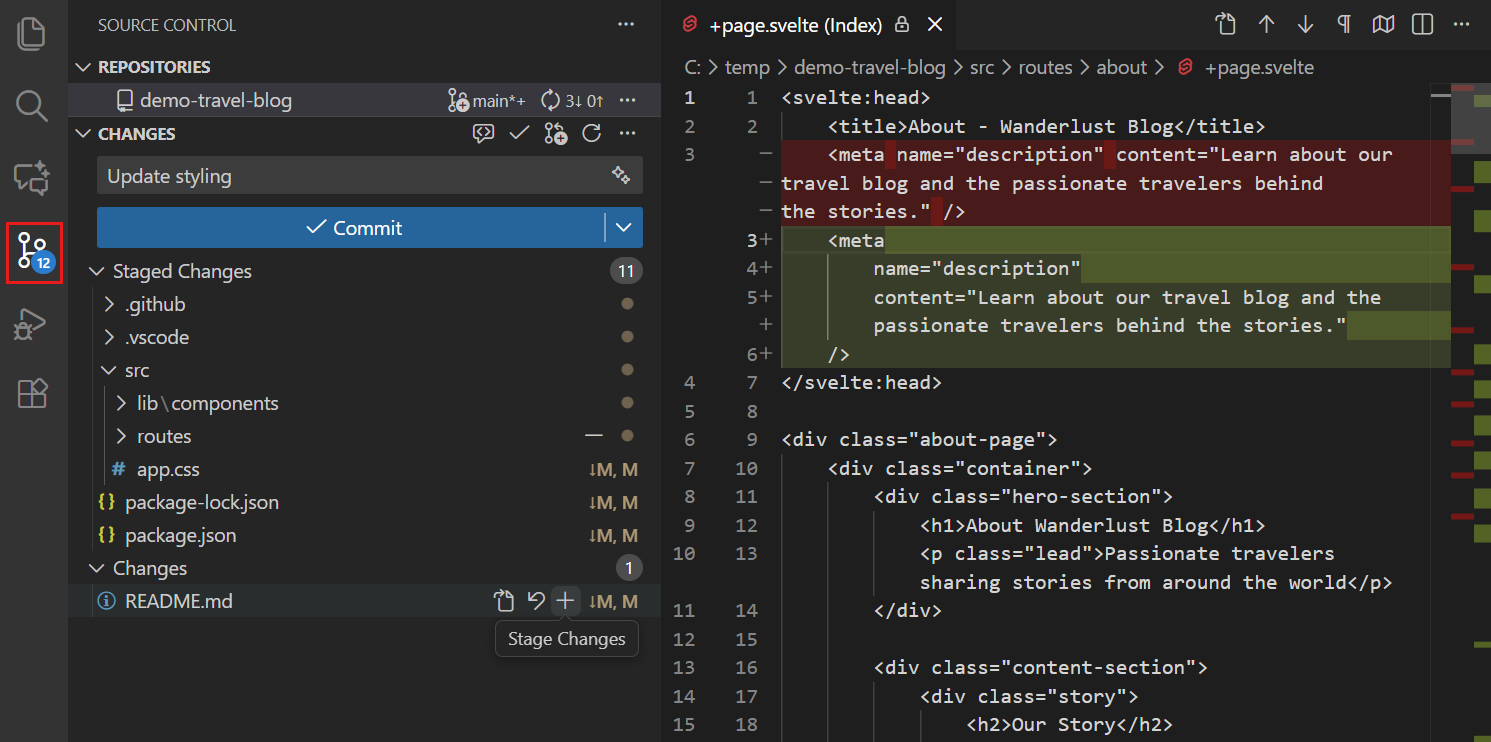
Fig. 31 Source Control view and diff editor. (Source: VS Code documentation; screenshot licensed under CC BY 3.0 US.)#
Python scripts: select, run and debug#
VS Code needs to know which Python interpreter should run your script. You do not need to create a virtual environment just to run or debug it. A project environment is useful when you need to install packages for that project; use an existing course environment if one has been provided.
Choose Python. Open a
.pyfile and run Python: Select Interpreter from the Command Palette (VS Code’s searchable command menu), or select the interpreter shown in the status bar. Choose the Python that has the packages your script needs. If your project already has a.venv, choose that interpreter.Run the script. Use the editor’s Python run control, or run
python code/your_script.pyin the integrated terminal from the project root. If the script uses relative paths such asdata/input.csv, check its working directory by temporarily addingfrom pathlib import Pathandprint(Path.cwd())to the script. Remove these lines after the check.Debug a fault. Set a breakpoint by clicking in the left margin beside a line of code. Choose Python Debugger: Debug Python File from the run control’s menu, or use Run and Debug. When execution pauses, inspect the variables and step through the next lines. The debugger normally uses the interpreter selected in step 1; no
launch.jsonis needed for this basic workflow.
If the script reports a missing package, or runs differently in the editor and terminal, check which Python each is using. Temporarily print sys.executable in the script (after import sys) and compare it with python -c "import sys; print(sys.executable)" in the terminal. Select the intended interpreter again or activate it in a new terminal. Before installing packages, follow Verify Python and pip agree; if you need an isolated place to install them, follow Create and activate one environment.
Jupyter notebooks: choose a kernel deliberately#
With the Microsoft Jupyter extension installed, keep the coursework notebook in the project root, alongside code, data and results. Open that root as the VS Code folder, then open the .ipynb file or create a new one there. A kernel is the program that will run its cells. Select Select Kernel in the notebook’s upper-right corner, then choose the intended entry under Python Environments or Jupyter Kernels. A remembered kernel is a convenience, not evidence that it is correct for a new project.
Run this in the first Python cell:
import sys
from pathlib import Path
print(sys.executable)
print(sys.prefix)
print(Path.cwd())
Compare the result with the project interpreter selected for scripts. If it is wrong, use Notebook: Select Notebook Kernel and choose again. A Python environment can be offered as a notebook kernel without installing a separate browser Jupyter server into that environment; use Add a Jupyter interface only when you need the browser Notebook or JupyterLab interface.
Save notebooks before switching kernels or closing VS Code. A kernel may continue to hold variables until it is restarted or stopped, so rerun the notebook from a clean kernel before treating an analysis as reproducible. See Language Kernels for named Python kernels and R notebook kernels.
An open project folder, integrated terminal and notebook kernel can report different current directories. In Python, check that Path.cwd() contains the expected code, data and results directories; in R, make the same check with getwd() and dir.exists(). If it does not, stop and correct how you opened the project or notebook before running the analysis. Do not use setwd() inside shared work to conceal the mismatch, and do not assume that selecting a kernel has moved it to the project root.
Using R in VS Code#
The R extension by REditorSupport provides an RStudio-like Environment pane and interactive data-frame viewer directly in VS Code. Version 3.0 introduced improved workspace browsing, recursive object expansion and on-demand data loading. Start with the current stable extension and its built-in viewers; additional viewer or layout extensions are not required for MQB.
Start and connect an R session#
This route requires R to be installed and usable before VS Code is involved. In the integrated terminal, check:
R --version
Install the R extension by REditorSupport. In an R console using the intended R installation, install its language-service package in your user library:
install.packages("languageserver")
The extension may ask to install or update its bundled sess session-support package; read the package prompt before accepting. languageserver provides code analysis, completion and diagnostics. It does not run your analysis or replace a working R session.
Open an .R file and open the Command Palette with Ctrl+Shift+P on Linux (Cmd+Shift+P on macOS). Run R: Create R Terminal. The extension’s session watcher should connect automatically, with the attached R process shown in the status bar. Select the R icon in the Activity Bar to open the Workspace viewer, then check the session before sending coursework code to it:
R.home()
.libPaths()
Sys.which("R")
Use the extension command for running the selected line(s) or selection, or source a known script explicitly:
source("code/example.R")
plot(cars)
?mean
The R extension can expose workspace, plot and help views when it is connected to the R terminal. Check a plot and an object before relying on those views; the exact layout depends on the extension version and session state. Ordinary plots do not require httpgd. httpgd is optional for an interactive plot viewer, and radian is optional; neither is required for MQB.
Explore objects and data frames#
The Workspace viewer displays objects in the attached session’s global environment, including data frames, vectors, lists and environments. Run this example in the connected R terminal:
df <- mtcars
results <- list(
  model = lm(mpg ~ wt, data = df),
  coefficients = c(1.2, 3.4),
  metadata = list(name = "experiment1")
)

View(df)
Expand results in the Workspace viewer, then expand metadata to inspect name. Lists, environments and data frames can be expanded recursively, so you can inspect nested objects without printing every component in the console.
View(df) opens an interactive table in an editor tab. Use the column headers to sort and the column filters to narrow the displayed rows; rows load on demand as you scroll. The column panel also lets you search, show, hide, pin and reorder columns. Calling View(df) again refreshes the existing tab. Viewing, sorting and filtering are inspection tools: keep the R commands that transform your data in your script so that the analysis remains reproducible.
Check the viewer settings#
If the Workspace viewer is empty or View(df) does not open the expected table, check that the intended R session is attached. Open Preferences: Open User Settings (JSON) from the Command Palette and ensure these settings are enabled:
{
  "r.sessionWatcher": true,
  "r.session.watchGlobalEnvironment": true
}
Merge these entries into your existing settings object rather than replacing it or adding a second pair of outer braces. The session watcher is enabled by default; global-environment watching supplies the workspace information and session-aware completion. Check workspace settings too if they override your user settings. After changing r.sessionWatcher, save your work and run Developer: Reload Window (or restart VS Code), then create an R terminal if no managed session reconnects. See the session watcher documentation and extension settings for details.
Add a keyboard shortcut to create an R terminal#
You can assign a shortcut to R: Create R Terminal instead of opening the Command Palette each time:
Run Preferences: Open Keyboard Shortcuts from the Command Palette, or press Ctrl+K, then Ctrl+S on Linux (Cmd+K, then Cmd+S on macOS). These are two successive key combinations, not one simultaneous combination.
Search for R: Create R Terminal.
Select the + beside the command, or double-click its keybinding entry, and enter your preferred shortcut. For example, press Ctrl+K, then Ctrl+Shift+R, and confirm with Enter. On macOS, use Cmd+K, then Cmd+Shift+R.
Right-click the entry and choose Show Same Keybindings. If the shortcut conflicts with a command you use, choose another combination rather than overwriting it unintentionally.
Return to your
.Rfile and try the shortcut. Confirm that an R terminal opens and that the session watcher attaches before sending analysis code.
Alternatively, run Preferences: Open Keyboard Shortcuts (JSON) and add this entry to your user keybindings.json:
[
  {
    "key": "ctrl+k ctrl+shift+r",
    "command": "r.createRTerm"
  }
]
If the file already contains shortcuts, add the object inside the existing array, separated from other entries by a comma; do not replace your existing bindings or add a second outer array. The example chord means Ctrl+K, followed by Ctrl+Shift+R; on macOS use "cmd+k cmd+shift+r" instead. Check for conflicts even with this example, since extensions and personal keymaps can add bindings. This is a keyboard-shortcut configuration, not an entry for settings.json. See the VS Code keybinding guide and the R extension’s keyboard-shortcut documentation.
Each use creates a new R terminal and session; it does not focus, restart or clear an existing session. To continue working with existing objects, select their terminal instead. Check which session is attached if you have several R terminals open, and use R: Activate R Session to select the intended session if necessary.
Optional layouts and alternative viewers#
For most MQB work, use the R extension’s built-in Workspace and data viewers first. If you want the source editor, console, workspace, data and plots arranged more like RStudio, consider R Lab. It provides an RStudio-inspired three-pane layout; after installing it, run Toggle R Lab from the Command Palette. R Lab uses the R extension for static editor features but manages its own console and session watching, so do not assume its console shares the session created by R: Create R Terminal.
R Enhanced Viewer (REViewer) is another optional extension for spreadsheet-like data-frame inspection, including multi-column sorting and filtering. Try the native viewer before adding it.
Positron is a separate VS Code-based IDE from Posit, the developers of RStudio, rather than a VS Code extension. It is designed for R and Python data science, with built-in variable exploration, data inspection, plots and consoles. Consider it if you want an integrated data-science layout and are willing to use a separate application; neither Positron nor R Lab is necessary to follow MQB.
Troubleshooting and other R workflows#
If R: Create R Terminal cannot find R, run these commands in VS Code’s integrated terminal:
command -v R
R --version
The first command should print R’s full path, and the second should report its version. If R is missing here too, return to R Installation and User Libraries. If both work but the extension still cannot find R, open Settings, search for r.executablePath, and enter the full path printed by command -v R. Do not copy a path from another computer.
Version 3.x uses r.executablePath for R’s background processes and, by default, its interactive console. Set r.consolePath only if you deliberately use a different interactive console. These replace the older r.rpath.* and r.rterm.* settings; see the extension settings documentation. If you use a remote Linux environment, configure the extension in that connected window, not in an unrelated local window.
R debugging is separate from the R language extension and needs its own supported debugger and prerequisites. Do not claim a script has been debugged merely because it ran. An R .ipynb notebook uses an IRkernel chosen in the notebook kernel picker; it is distinct from sending code to an .R terminal.
A small setup check#
Before beginning an analysis, try these checks in a scratch project with a few made-up records:
Open the project root and verify the terminal location.
Run a short Python script using the selected project interpreter and print
sys.executable.Create a small notebook in the project root, select its kernel, and print
sys.executableandPath.cwd(). Confirm thatcode,dataandresultsare visible from that location.If using R, create an R terminal, inspect
R.home()and.libPaths(), source a small script and view a simple plot. Run the object example above, expandresultsin the Workspace viewer and confirm thatView(df)opens a table you can sort and filter.
If any of these checks identifies a different interpreter, R installation or working directory than expected, stop and correct that mismatch before installing packages or running coursework. Record the OS, VS Code version, interpreter/R version and relevant extensions when reporting a setup problem to teaching staff.
Further reading#
See Setup Guide Attribution for the adapted material’s attribution, licence and limits of the setup checks.